
Agencies
Add your customers and manage them from the agency dashboard.
Add Customers
The three ways to bring customers into your dashboard.
Table of contents
back
to the top
You can add customers in three ways: upload a list, add one at a time, or send your partner code to customers who already use CookiePal. All three start from the same window.
Open the Window
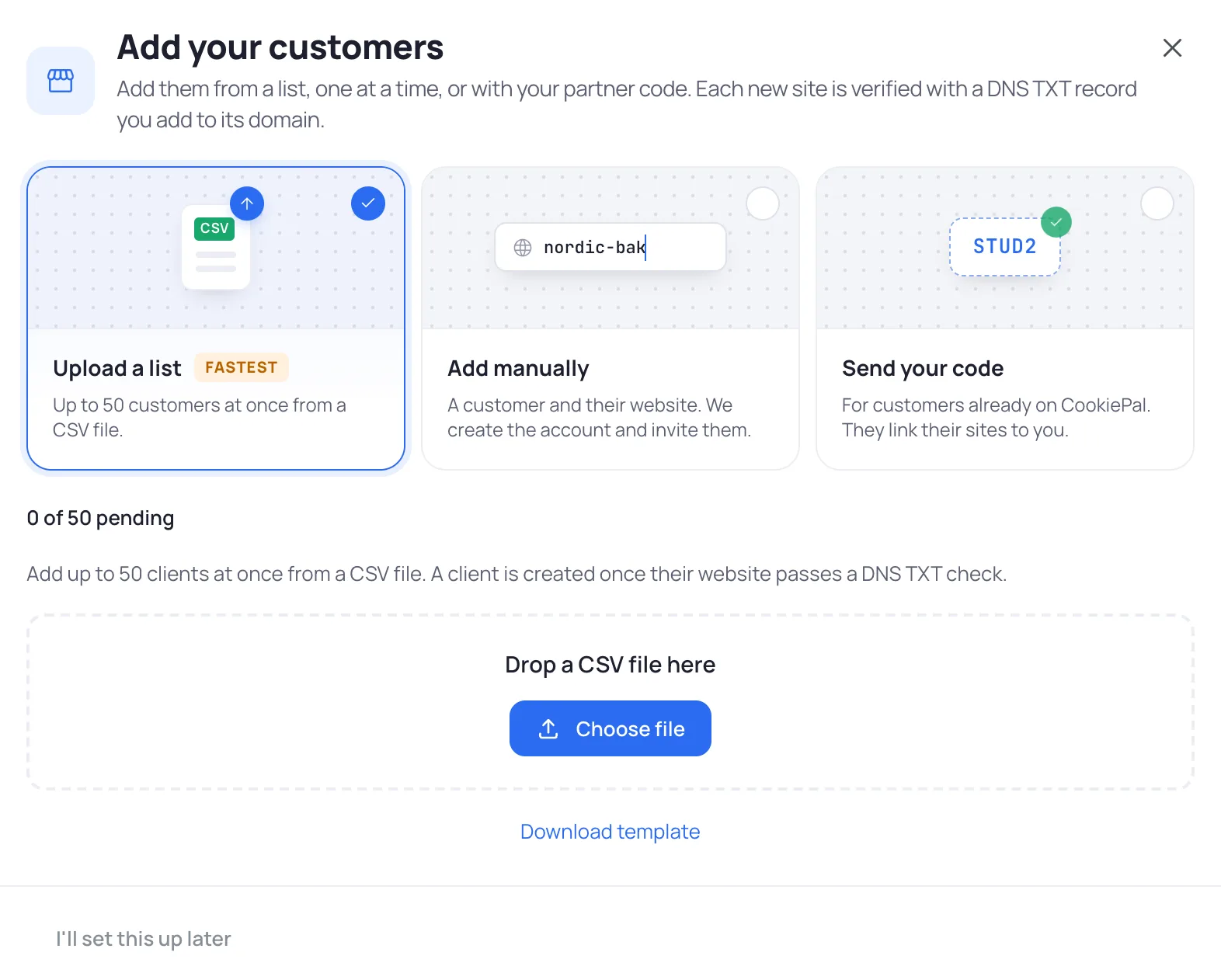
Click "Add customers" on Home or on the Customers page. The window shows the three ways to add customers side by side.
Upload a List
Choose "Upload a list" to add up to 50 customers at once from a CSV file. It is the fastest way. See Upload a List of Customers.
Add Manually
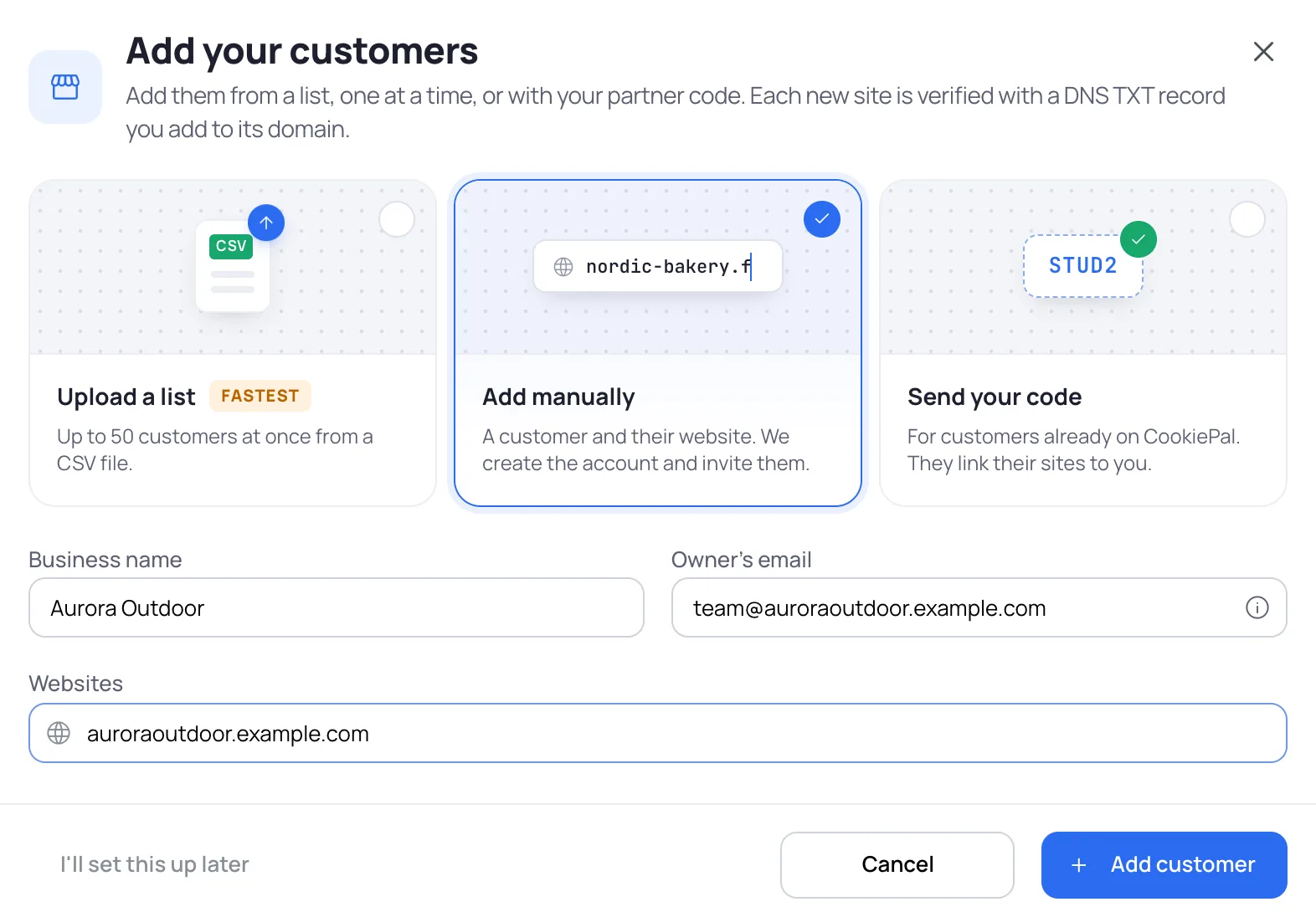
Choose "Add manually" to add one customer and their website. We create the account and invite them once the site passes its DNS check. See Add a Customer Manually.
![Choose "Add manually" to add one customer and their website. We create the account and invite them once the site passes its DNS check. See [Add a Customer Manually:/help-guide/agencies/add-a-customer-manually:same-tab].](/_next/static/media/add_customers_manual.70940aad.webp)
Send Your Code
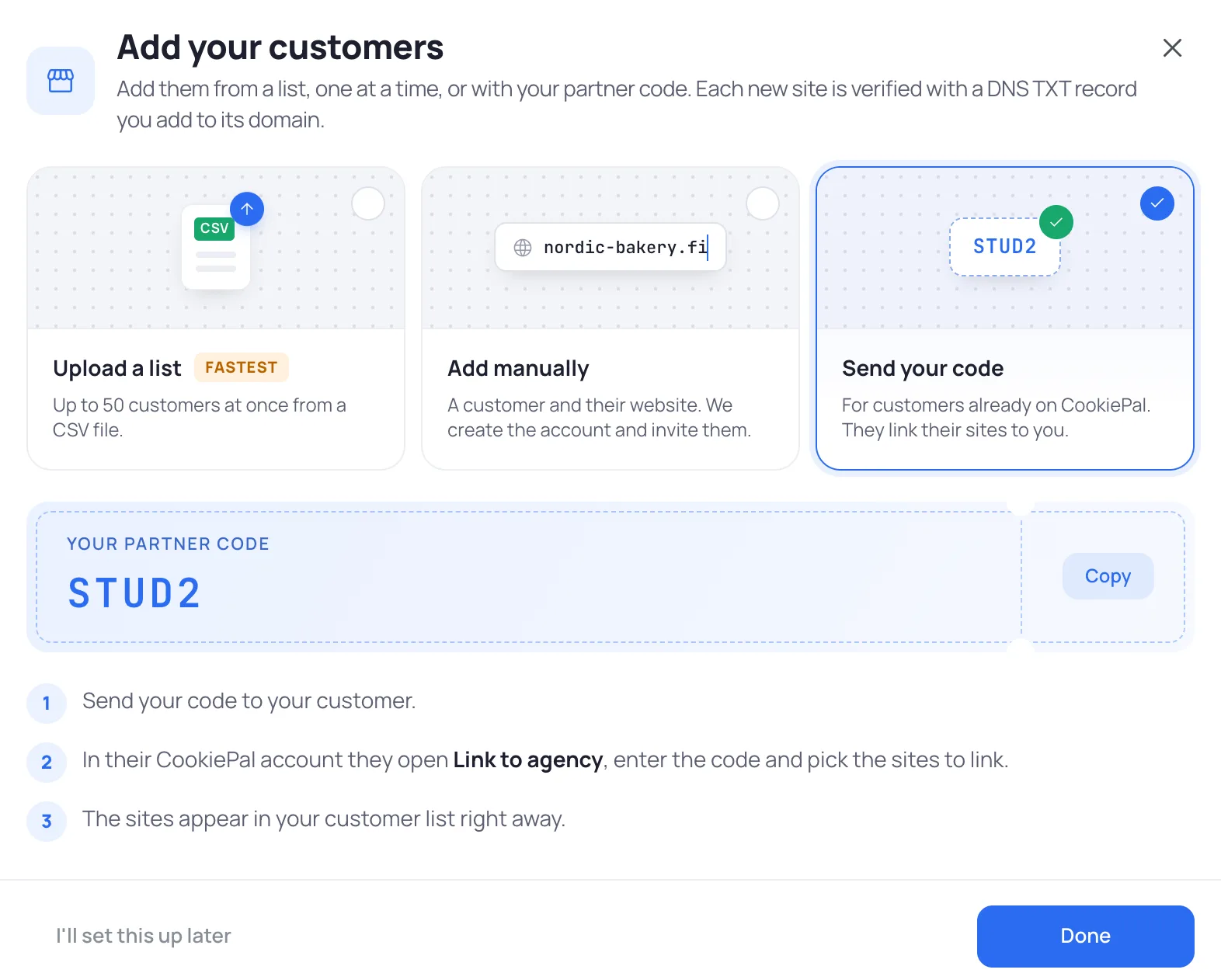
Choose "Send your code" for customers who already use CookiePal. They link their sites to your agency with your partner code. See Link Customers With Your Partner Code.
![Choose "Send your code" for customers who already use CookiePal. They link their sites to your agency with your partner code. See [Link Customers With Your Partner Code:/help-guide/agencies/link-clients-with-your-partner-code:same-tab].](/_next/static/media/add_customers_code.e4f6cf9f.webp)
What Happens Next
Sites you upload or add manually wait under "Waiting for DNS" on the Customers page until you publish a DNS record for each. See Verify a Domain With a DNS Record.
Sites linked with your partner code show up in your customer list right away.
Click "Add customers" on Home or on the Customers page. The window shows the three ways to add customers side by side.

Choose "Upload a list" to add up to 50 customers at once from a CSV file. It is the fastest way. See Upload a List of Customers.
Choose "Add manually" to add one customer and their website. We create the account and invite them once the site passes its DNS check. See Add a Customer Manually.

Choose "Send your code" for customers who already use CookiePal. They link their sites to your agency with your partner code. See Link Customers With Your Partner Code.

Sites you upload or add manually wait under "Waiting for DNS" on the Customers page until you publish a DNS record for each. See Verify a Domain With a DNS Record.
Sites linked with your partner code show up in your customer list right away.
Any Questions Left?
Feel free to contact us and we will answer all of yours remaining questions!
Contact Us