

Features
Utilize advanced features and integrate CookiePal with other tools.
Fix tags blocked by GTM additional consent checks
Learn why GA4, Google Ads, Floodlight, and custom tags can be blocked when additional consent checks are enabled in GTM.
Table of contents
back
to the top
If CookiePal is installed and Google Consent Mode is enabled, but consent-dependent tags still do not fire, the issue is often inside your Google Tag Manager tag settings. This guide explains how to identify extra GTM consent checks that can block tags before CookiePal has a chance to update consent, and how to handle Google and non-Google tags correctly.
Why a tag doesn't fire even with CookiePal set up correctly
If a tag that depends on consent does not fire even though CookiePal and Google Consent Mode are set up correctly, the usual cause is an extra consent gate inside your GTM container. This most often shows up as missing Google Analytics 4 cookies such as _ga or _ga_*, an empty GA4 Realtime report, conversions not being recorded, or the tag listed under Tags Not Fired in GTM Preview.
This happens when a tag has Require additional consent for tag to fire enabled, for example requiring analytics_storage or ad_storage. CookiePal correctly sets consent to denied by default before the visitor makes a choice. When the page-load trigger runs, GTM checks that additional requirement immediately, sees that consent is still denied, and blocks the tag.
When the visitor accepts the CookiePal banner a few seconds later, consent is updated to granted. But GTM does not automatically replay a tag that was already blocked at its original trigger moment. The result is that the tag never runs on that page, so no cookies are set and no events or conversions are sent.
This affects any tag with that setting, not only GA4. It is most visible with GA4 because missing _ga cookies and an empty Realtime report are easy to notice, but the same block applies to Google Ads, Floodlight, and custom HTML tags.
Google tags (GA4, Google Ads, Floodlight) already have built-in consent checks and adjust their behavior based on consent mode. Google also recommends removing additional consent checks from Google tags when consent mode is implemented. See Google's Tag Manager consent mode support and Unblock Google tags when using consent mode documentation for more detail.
How to confirm this is the issue
1. Open your live site in a fresh incognito or private window.
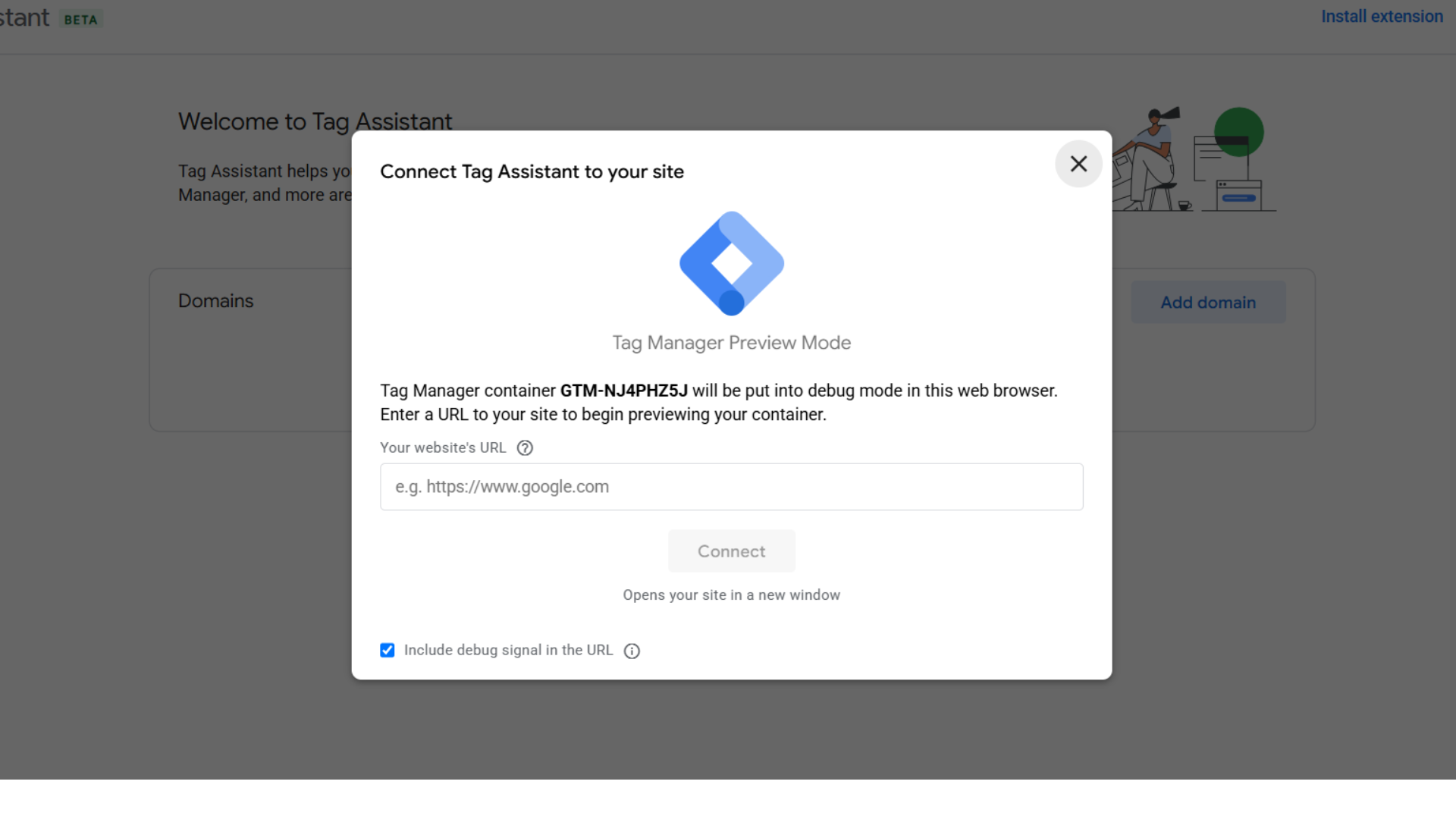
2. Open your Google Tag Manager container in Preview mode to start a Tag Assistant session.
![2. Open your Google Tag Manager container in [Preview:bold] mode to start a Tag Assistant session.](/_next/static/media/open-live-site.c20f6bee.png)
3. Load the page before accepting the CookiePal banner.
4. In Tag Assistant, find the tag that is not working: a GA4 configuration or event tag such as add_to_cart or purchase, a Google Ads tag, or a custom tag.
5. If the tag is listed under Tags Not Fired and shows a required additional consent type such as analytics_storage or ad_storage, this guide applies.
![5. If the tag is listed under [Tags Not Fired:bold] and shows a required additional consent type such as `analytics_storage` or `ad_storage`, this guide applies.](/_next/static/media/tag-not-fired-additional-consent.b7a26d99.png)
6. Accept the CookiePal banner and check again. If the tag stays blocked until the next full page load, the additional consent check is preventing it from firing at the right time.
For Google tags: remove the additional consent check
This is the recommended fix for Google tags. Apply it to your GA4 configuration tag, every GA4 event tag, and any Google Ads or Floodlight tag in the same GTM container.
1. In Google Tag Manager, open Workspace > Tags.
![1. In Google Tag Manager, open [Workspace:bold] > [Tags:bold].](/_next/static/media/open-workspace-tags.e4a9aa42.png)
2. Open the tag you want to fix.
3. Go to Tag configuration > Advanced Settings > Consent Settings.
![3. Go to [Tag configuration:bold] > [Advanced Settings:bold] > [Consent Settings:bold].](/_next/static/media/open-consent-settings.1b3c5da7.png)
4. Review Built-In Consent Checks. For Google tags you should see consent types such as ad_storage and analytics_storage. This built-in consent mode behavior is what respects the visitor's CookiePal choice, so leave it in place.
5. Under Additional Consent Checks, select No additional consent required. This clears the analytics_storage (or ad_storage) requirement that was blocking the tag.
![5. Under [Additional Consent Checks:bold], select [No additional consent required:bold]. This clears the `analytics_storage` (or `ad_storage`) requirement that was blocking the tag.](/_next/static/media/no-additional-consent-required.7fcc7bc8.png)
6. Repeat for the other Google tags, then click Submit and Publish.
![6. Repeat for the other Google tags, then click [Submit:bold] and [Publish:bold].](/_next/static/media/submit-and-publish.50cbc1a6.png)
Do not remove CookiePal, the CookiePal CMP tag, or Google Consent Mode. This change only removes an extra GTM firing condition from tags that already understand consent mode.
For custom or non-Google tags: gate on the CookiePal consent event
Custom HTML tags and other non-Google tags do not have built-in consent mode, so removing their consent check would let them fire with no consent. Instead, fire them from the visitor's actual CookiePal choice so consent is still respected.
CookiePal stores that choice in the cookiepal-consent cookie, which holds a per-category value such as analytics:yes or analytics:no, and pushes a cookie_consent_update event to the dataLayer whenever consent is accepted or updated.
In GTM, add a Custom Event trigger on cookie_consent_update with a condition that reads the consent cookie (through a 1st Party Cookie variable on cookiepal-consent) and fires only when the required category is granted, for example when it contains analytics:yes. Attach that trigger to the tag.
Because the trigger is conditioned on the consent value, the tag fires only after the visitor consents, and only for the category they allowed. On reject, or for a category the visitor declined, cookie_consent_update still fires but the condition is not met, so the tag stays blocked.
For the full step-by-step, see Block Third-Party Cookies With Google Tag Manager (GTM). If you have disabled Google Consent Mode in CookiePal, use .* as the event name with regex matching, as described in that guide.
How to verify it worked
1. Open the site in a fresh incognito or private window after publishing the GTM changes.
2. Accept the CookiePal banner.
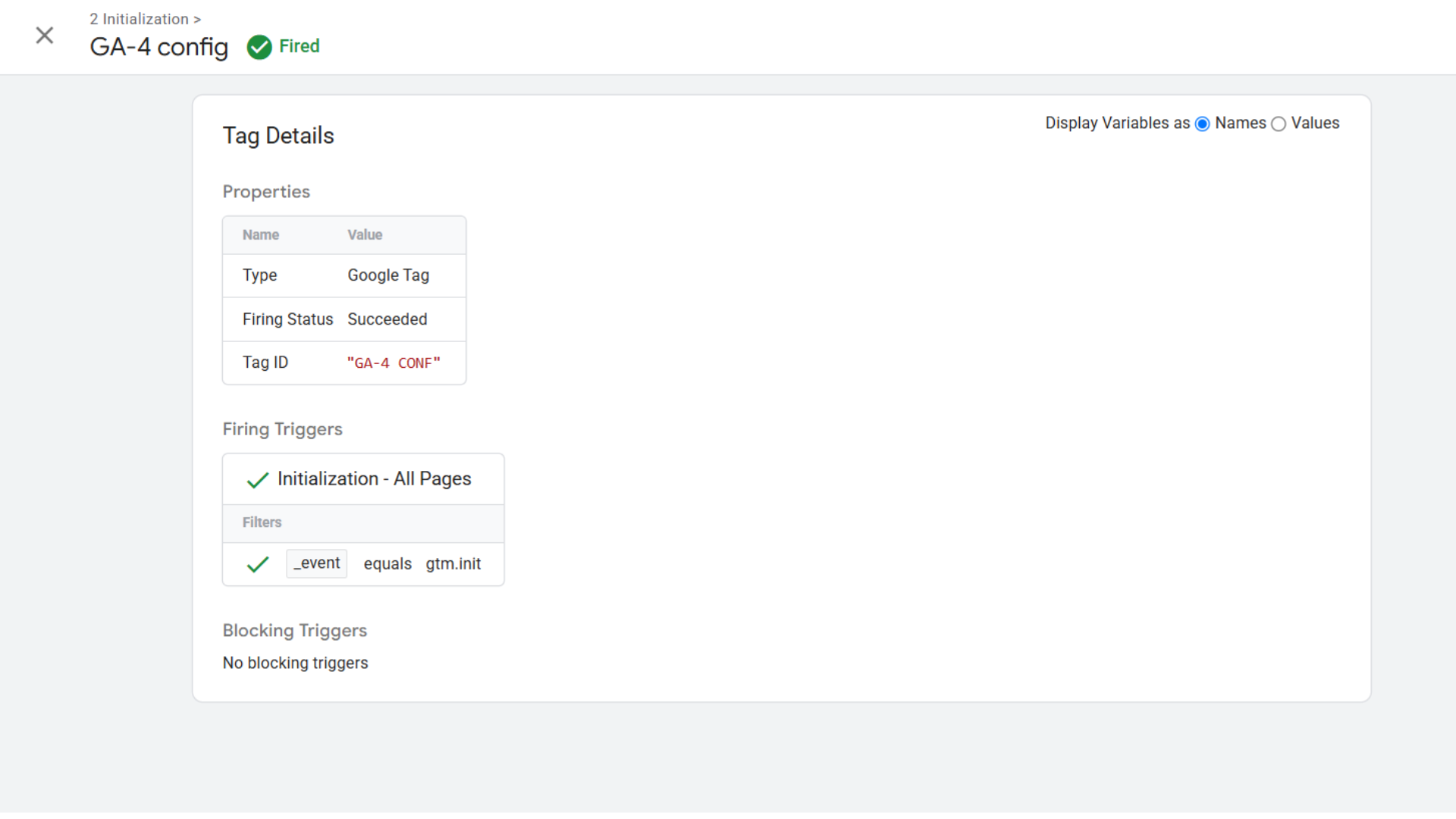
3. Confirm the tag now fires: for a GA4 tag, look for activity in Reports > Realtime; for a Google Ads tag, check that its conversion request is sent; for a custom tag, confirm its network call fires.
4. In browser DevTools, open Application or Storage > Cookies and confirm the tag's expected cookies now appear after consent is granted. For a GA4 tag those are _ga and _ga_*.
5. In GTM Preview, confirm the tag is no longer listed under Tags Not Fired due to required additional consent.
Once your tags set cookies normally, CookiePal's next scheduled scan can detect those cookies and show them in your site's cookie list.
Still not working?
If the tag still does not fire after you publish the change and test in a fresh incognito window, contact support with the following information:
- A screenshot from GTM Preview or Tag Assistant showing the tag status.
- Your GTM container ID.